


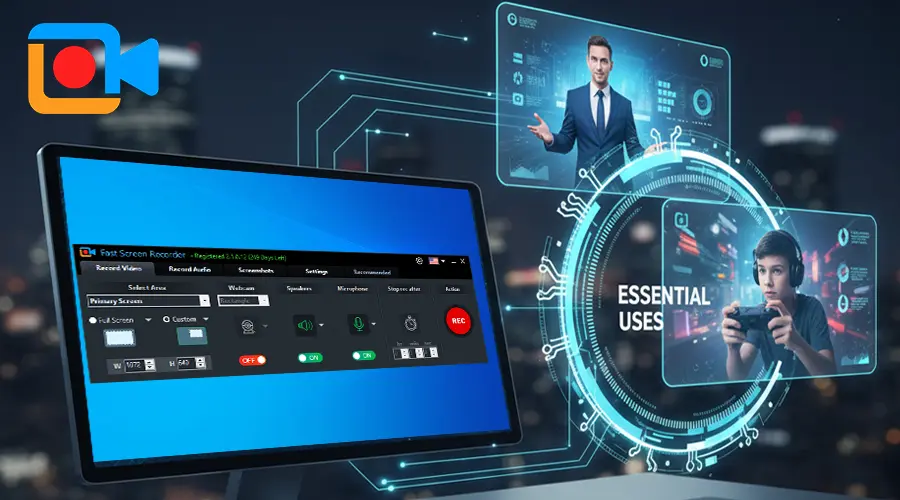
Recording a computer screen has become a useful part of everyday digital work. People record software tutorials, online classes, product demonstrations, presentations, gameplay, video calls, and troubleshooting sessions for many different reasons. Instead of explaining every step with written instructions, a recorded video can show exactly what is happening on the screen.
However, choosing the right screen recorder is not always straightforward. Different users need different features. Someone creating educational content may care about microphone quality and editing tools, while a gamer may be more interested in smooth performance and high-resolution recording.
A practical recording application should make the process simple without forcing users to learn complicated controls. One option designed for Windows users is iTop Screen Recorder which combines screen capture with audio, webcam, and video-editing capabilities.
Why Screen Recording Has Become So Useful
Screen recording is no longer limited to professional video creators. Students can record lessons for later review, employees can demonstrate software procedures, and businesses can create product tutorials for customers.
It can also be helpful when explaining a technical problem. Instead of describing an error through a long message, a user can record the issue and show exactly what appears on the screen.
For content creators, screen recording can become part of a larger workflow. A creator can capture the desktop, add commentary, edit unnecessary sections, and prepare the finished video for publication.
What to Look for in a Screen Recorder
Before selecting recording software, it is worth considering several important features.
First, the application should allow flexible recording areas. Some users need the entire desktop, while others only want to capture a specific application or portion of the screen.
Audio support is another important consideration. A useful recorder should make it possible to capture system sounds and microphone input when necessary.
Webcam support can also be valuable for tutorials, presentations, and reaction-style content. Having the webcam and screen available in one recording can make videos more engaging.
Finally, editing features can save time. Basic trimming and other editing functions mean users do not always need a separate application for simple corrections.
Using iTop Screen Recorder for Different Tasks
iTop Screen Recorder is designed to support several types of recording rather than focusing on only one use case. According to IObit’s current product information, it can record the screen, webcam, and audio, while also providing annotation and editing features.
This flexibility can be useful for people who switch between different recording projects.
For example, a student might capture an online lesson, while a software enthusiast could record a demonstration showing how a particular application works. Gamers can also use screen recording to capture gameplay footage.
The software supports recording different areas of the screen, allowing users to choose an approach that fits the content they want to create.
Record Tutorials Without Complicating the Process
Tutorial videos are one of the most practical applications of a screen recorder. When demonstrating software, viewers need to see where buttons are located and how different menus work.
A recording can capture these actions directly. Users can explain their steps through microphone narration while showing the relevant part of the desktop.
Annotations can make tutorials easier to follow because important areas can be highlighted during the recording. This can be particularly useful when explaining a complicated interface or pointing out a specific setting.
Instead of producing a long written explanation, a short visual demonstration can communicate the same information more clearly.
Capture Gameplay and High-Quality Video
Gaming is another popular reason for recording a PC screen. Players may want to save memorable matches, create walkthroughs, or prepare gameplay clips for social media.
Recording quality matters in this situation because fast-moving games can expose weaknesses in poorly configured recording software. According to IObit’s product page, iTop Screen Recorder supports high-quality recording and can capture 4K streaming videos and games.
Users should still choose recording settings according to their hardware. Higher resolution and quality settings can require additional storage and system resources, so the ideal configuration depends on the computer and the intended use of the recording.
Combine Screen and Webcam Recording
A webcam can add a personal element to tutorials, presentations, and gaming videos. Instead of showing only the desktop, creators can appear on screen while explaining what they are doing.
A screen recorder that supports both sources can simplify this process because users do not necessarily need to record the webcam separately and combine the footage later.
iTop Screen Recorder supports screen and webcam recording together, which can be useful for online presentations, courses, demonstrations, and other video projects.
Make Recordings More Professional With Editing
Recording the original footage is only one part of producing a useful video. Most recordings contain small mistakes, pauses, or sections that do not need to appear in the final version.
Basic editing tools can help users remove unnecessary portions before sharing the video. This can make the final recording shorter and easier to watch.
Having recording and editing features within the same application can also reduce the need to move large video files between multiple programs.
For users who regularly create tutorials or demonstrations, this can make the overall workflow more convenient.
Think About Storage Before Recording
High-quality video files can become large, especially when recording at high resolution for extended periods. Before beginning a long recording session, users should make sure sufficient storage space is available.
It is also useful to decide where the recordings will be saved. Organizing videos by project, date, or content type can make them easier to find later.
If recordings are intended for online publication, users may also want to consider the final platform’s preferred resolution and file requirements before choosing recording settings.
Select Settings Based on Your Purpose
There is no single recording configuration that works perfectly for everyone.
A short tutorial may not require the same quality settings as a gameplay video. A presentation may prioritize clear microphone audio, while a software demonstration may benefit from a sharper desktop image.
The best approach is to consider the final purpose before starting. This prevents users from unnecessarily creating enormous files when a smaller recording would be sufficient.
Testing a few settings with short sample recordings can also help users find a balance between quality, file size, and system performance.
Keep the Recording Workflow Simple
The most useful recording software is often the one that fits naturally into a user’s workflow. Complicated interfaces can make simple tasks unnecessarily difficult.
A straightforward process might look like this: select the recording area, configure audio and webcam options, begin recording, review the result, and make any necessary edits.
iTop Screen Recorder is positioned as an all-in-one option for Windows users who want screen capture combined with additional recording and editing functions. IObit’s current listing also describes support for Windows 11, 10, 8, and 7.
Final Thoughts
A reliable screen recorder can be useful for education, work, gaming, tutorials, presentations, and content creation. The right software should provide enough flexibility to capture the content users actually need without making the process unnecessarily complicated.
iTop Screen Recorder offers a combination of screen, webcam, and audio recording alongside editing and annotation features. Its range of recording options makes it suitable for different types of PC projects.
Ultimately, the best recording setup depends on the user’s purpose, computer hardware, desired quality, and final publishing platform. By choosing appropriate recording settings and keeping the workflow organized, users can turn everyday desktop activity into clear, useful, and shareable video content.
See more amazing information. Visit: Freely Magazine
