


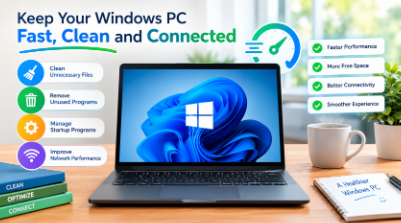
A Windows PC can feel fast when it is new, but its performance often changes with regular use. Over time, temporary files, unused applications, browser data, startup programs, background processes, and other unnecessary items can build up. At the same time, poor network settings or too many applications competing for system resources can make browsing and online activities feel slower.
The good news is that you do not always need to replace your computer to improve its everyday performance. A few simple maintenance habits, combined with the right tools, can help keep an older or heavily used Windows PC running more smoothly.
From cleaning unnecessary files to removing unwanted software and improving network performance, there are several practical steps Windows users can take.
Why Does a Windows PC Become Slow Over Time?
There is rarely one single reason behind a slow computer. Instead, performance problems usually develop gradually.
Every time you install an application, browse the web, download files, or update software, your computer can accumulate temporary data. Some programs also add themselves to the startup list, meaning they begin running as soon as Windows starts.
Background applications can consume RAM and CPU resources even when you are not actively using them. Low storage space can also make everyday tasks less comfortable, particularly when your drive is already close to full.
Another common issue is having software installed that you no longer need. Simply leaving unwanted applications on your PC can waste storage and sometimes leave behind additional files or components.
For these reasons, regular PC maintenance is more useful than waiting until the computer becomes extremely slow.
Start With a Good PC Cleaning Routine
One of the simplest ways to maintain Windows is to regularly remove unnecessary files. Temporary files, browser caches, logs, and other leftover data can gradually consume valuable storage.
Windows already provides built-in options such as Storage Sense and Disk Cleanup, so users can start with those tools. It is also worth checking the Downloads folder and removing files that are no longer needed.
For people who want a more centralized approach, Advanced SystemCare is designed as an all-in-one PC cleaning and optimization solution. Its cleaning features can identify different types of unnecessary files, while its optimization tools can also address startup items, memory usage, and other common performance issues.
A useful approach is to scan first and review what the software identifies rather than blindly deleting files. This helps you understand what is taking up space and makes regular maintenance easier.
Use a PC Cleaner to Deal With Digital Clutter
A PC cleaner can be particularly useful when your computer has been used for years and has accumulated a large amount of digital clutter.
Advanced SystemCare includes features for cleaning unnecessary files, optimizing startup items, managing background processes, and freeing memory. Its newer AI mode is designed to create a personalized cleaning and optimization plan based on the computer’s condition and usage patterns.
This does not mean that a PC cleaner should replace normal computer maintenance. Users should still keep important files backed up, remove applications they no longer use, and keep Windows and other software updated.
The biggest advantage of a dedicated cleaning tool is convenience. Instead of checking several areas of Windows individually, users can handle many routine maintenance tasks from one place.
Remove Programs You No Longer Need
Cleaning files is only one part of maintaining a Windows PC. Another important step is reviewing installed software.
Many people install an application for a specific project and then forget about it. Games, trial programs, browser extensions, utilities, and old software can remain installed long after they stop being useful.
Windows provides a standard uninstall option, but some users may want additional tools for managing unwanted programs and their leftover files.
This is where IObit Uninstaller can be useful. It is designed to remove unwanted programs and leftovers, while also providing tools for dealing with plug-ins and other software components.
An uninstall tool can make software cleanup more convenient, particularly when you have many applications installed. Instead of manually searching through different folders after removing a program, a dedicated uninstaller can help identify related leftovers.
The latest IObit Uninstaller release also includes tools such as Software Relocator and Bloatware Remover, along with improvements to residual-file cleaning and its Powerscan capability.
Before uninstalling anything, however, it is sensible to confirm that the program is not required by Windows or another application you still use.
Manage Startup Programs
Have you noticed that your computer takes a long time to become usable after you turn it on?
Startup applications may be part of the problem. Some programs automatically launch with Windows even though you may not need them immediately.
You can review startup applications through Windows Task Manager. Press Ctrl + Shift + Esc, open the Startup apps section, and check which programs are enabled.
If you rarely use a program, preventing it from launching automatically can help reduce the number of applications competing for resources during startup.
Advanced SystemCare also includes startup optimization features intended to help identify unnecessary startup programs.
The goal is not to disable everything. Some applications need to start with Windows, so it is better to make changes selectively.
Improve Your Internet Experience
A fast computer does not always mean a fast online experience. Your internet connection can also feel slow because of network conditions, browser settings, bandwidth usage, or high latency.
Before changing anything, test your connection and determine whether the problem is actually related to your internet service. Restarting the router, moving closer to a Wi-Fi access point, closing unnecessary downloads, and using a less congested network can all help.
Software optimization can also play a role in certain situations. Advanced SystemCare includes an Internet Booster designed to optimize supported browser and network settings. IObit’s documentation says the feature can adjust TCP/IP and browser-related settings to help improve connection performance.
The Internet Booster also includes features aimed at reducing latency and prioritizing active applications. This can be useful for people who frequently browse, stream videos, attend online meetings, download large files, or play online games.
It is important to keep expectations realistic, though. A software-based optimizer cannot magically increase the speed provided by your internet service provider. Your connection quality, router, network congestion, hardware, and service plan still matter.
Keep Your Browser Under Control
Web browsers can become another source of unnecessary clutter.
Over time, browsers collect cached files, cookies, extensions, browsing data, and other information. Some of these items are useful, but excessive or unwanted browser components can make the browsing experience less comfortable.
Review your browser extensions regularly. Remove extensions you no longer use, especially if you do not remember installing them. Keep your browser updated and clear unnecessary browsing data when appropriate.
Advanced SystemCare also includes browser-related optimization and protection features intended to improve browsing performance and help protect users from unwanted browser changes.
Again, moderation is important. Clearing every browser setting constantly is not necessary. Focus on removing genuine clutter and extensions you do not need.
Free Up RAM by Reducing Background Activity
When many applications are open at the same time, your PC has to divide its available resources among them.
For example, you might have a browser with several tabs open, a video editor running in the background, cloud storage syncing files, and several other applications active at the same time.
Closing programs that you are not using can immediately reduce resource usage. Windows Task Manager can help identify applications consuming large amounts of CPU or memory.
Advanced SystemCare also provides memory optimization and real-time tune-up features intended to reduce unnecessary resource usage and improve system responsiveness.
However, users should avoid repeatedly ending processes they do not recognize. Some background processes are essential for Windows or installed applications to work correctly.
Keep Windows and Software Updated
Performance is not the only reason to maintain your PC. Software updates can also address bugs, compatibility problems, and security vulnerabilities.
Keep Windows updated and make sure commonly used applications are running current versions. Drivers can matter too, especially when you experience problems involving graphics, sound, networking, or other hardware.
At the same time, avoid downloading software from unfamiliar websites simply because it promises an instant performance boost. Stick to reputable sources and carefully review installation screens before accepting additional software.
A Simple Maintenance Schedule
You do not need to spend hours every week maintaining your computer. A simple routine can be enough.
Every week:
- Remove unnecessary downloads.
- Close applications you no longer need.
- Check for software updates.
- Review browser extensions if necessary.
Every few weeks:
- Clean temporary and unnecessary files.
- Review installed applications.
- Check startup programs.
- Look at available storage space.
Every few months:
- Remove software you no longer use.
- Review browser settings.
- Check whether your backup system is working.
- Review programs that automatically run in the background.
Using tools such as Advanced SystemCare for PC cleaning and optimization and IObit Uninstaller for software removal can make these routine tasks easier.
Final Thoughts
Keeping a Windows PC running well is mostly about consistent maintenance rather than one dramatic fix. Removing unnecessary files, uninstalling unused programs, controlling startup applications, managing background processes, keeping software updated, and paying attention to network performance can all contribute to a better everyday experience.
A reliable PC cleaner such as Advanced SystemCare can help organize several cleaning and optimization tasks in one place, while IObit Uninstaller can make it easier to remove unwanted applications and leftover files. For users dealing with sluggish online activity, the Internet Booster features in Advanced SystemCare provide another option for optimizing supported network and browser settings.
The key is to use these tools as part of sensible PC maintenance, not as a replacement for good computer habits. With regular cleanup and careful software management, you can reduce digital clutter and keep your Windows PC feeling more responsive for longer.
See more amazing information. Visit: Freely Magazine
